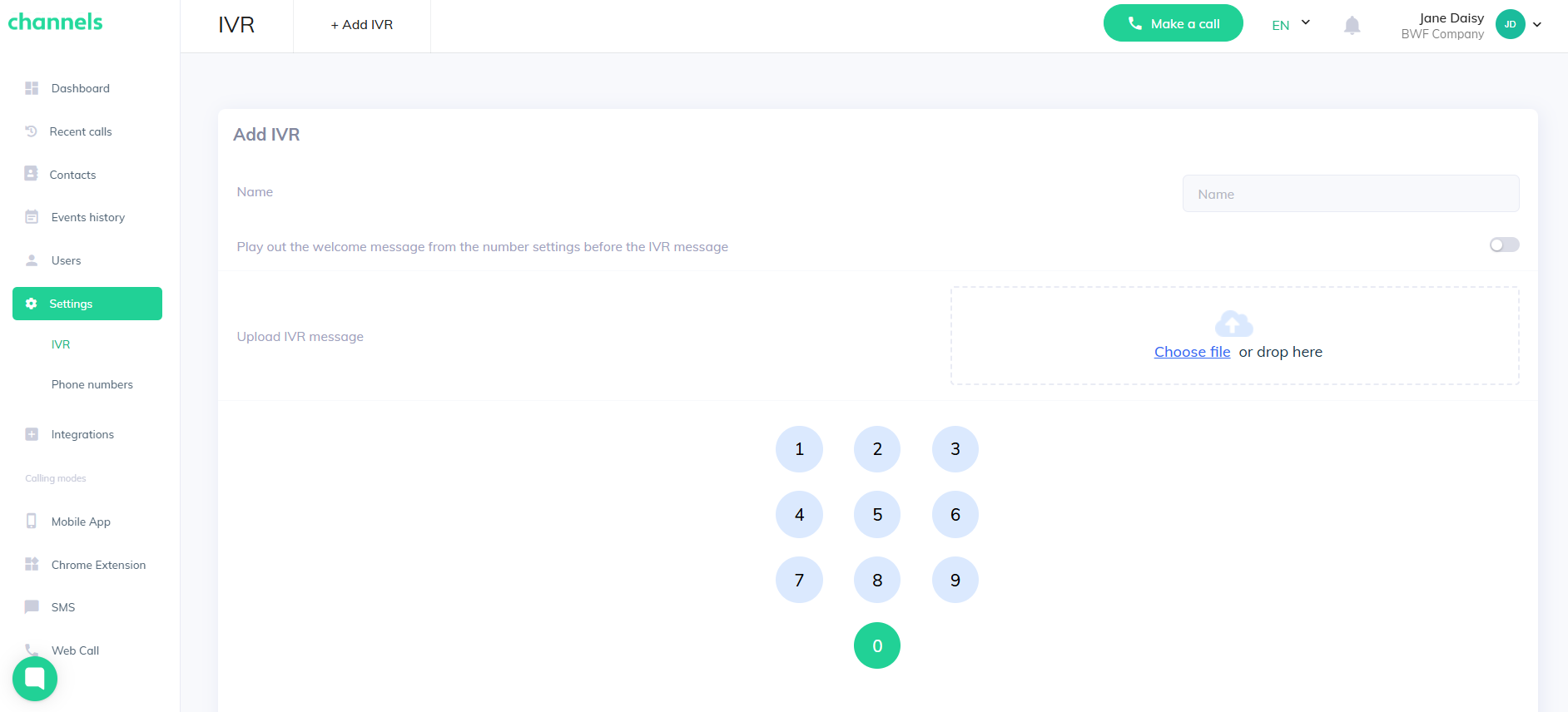
Channels let you manage incoming calls from leads and customers. You can handle calls even when you are offline.
Callers can leave a voicemail, use an interactive IVR, hear your offline message, or have the call forwarded to a number you choose, so you never miss a contact opportunity.
To set how a helpline behaves, go to the “Settings” tab and pick the number you want to edit. Settings apply only to the selected number, and you can customize each number separately.
On this screen, you’ll see options like:
receive incoming calls
forward incoming calls to a number
don’t accept incoming calls
messages
If this option is on, all calls made to or from the number will be recorded. Recordings are kept so you can listen to or download them according to your plan.

Turn this on to allow all incoming calls. After enabling, choose what happens in these situations:
When agents are online, choose one of three call distribution methods:
Random - the call goes to a randomly chosen available agent. If not answered, it moves to the next agent.
Longest Idle - the call goes to the agent who has been idle the longest. If not answered, it moves to the next available agent.
Simultaneous calls - all available agents are alerted. The first agent to answer takes the call.
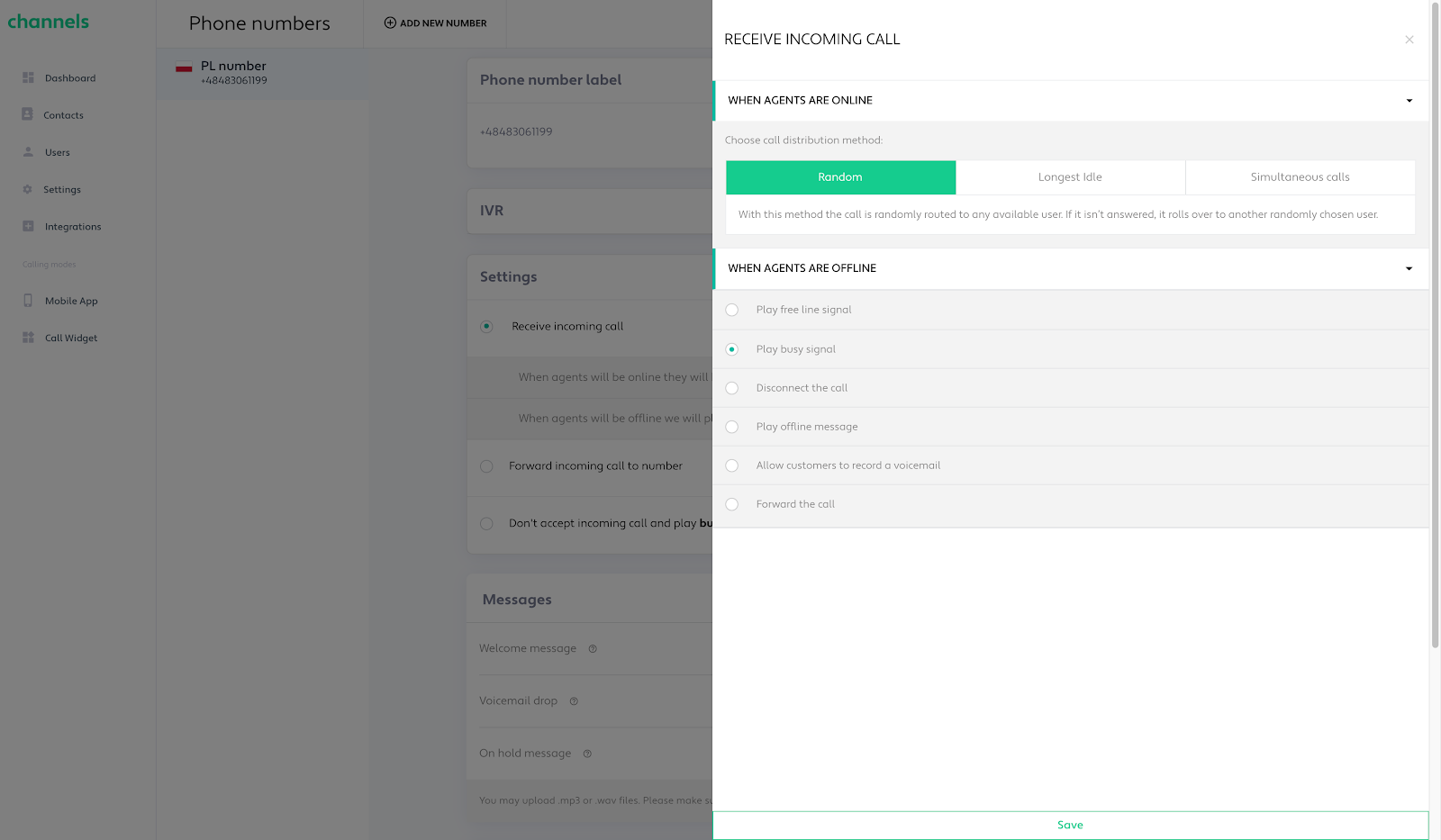
When agents are offline (no agents linked to the number are active), you have six options:
Play free line signal: The caller hears a free line signal until the call ends (the call is terminated after 30 seconds).
Play busy signal: The caller hears a busy message: “The number you are trying to dial is currently busy. Please try again later.”
Disconnect the call: The caller is disconnected and hears a message saying the number is out of reach.
Play offline message: As soon as the call connects, the caller hears your uploaded audio (for example, a business hours message). The call then disconnects shortly after.
Allow customers to record a voicemail: When the call connects, the caller hears your uploaded voicemail prompt and can record a message after the tone. Voicemails can be accessed and played in the Contacts tab or via the voicemail notification.
Forward to another number: (If applicable) The call is redirected to a different number you specify when no agents are available.
Forward the call: when no agents are available, the call will be forwarded according to the settings described below.
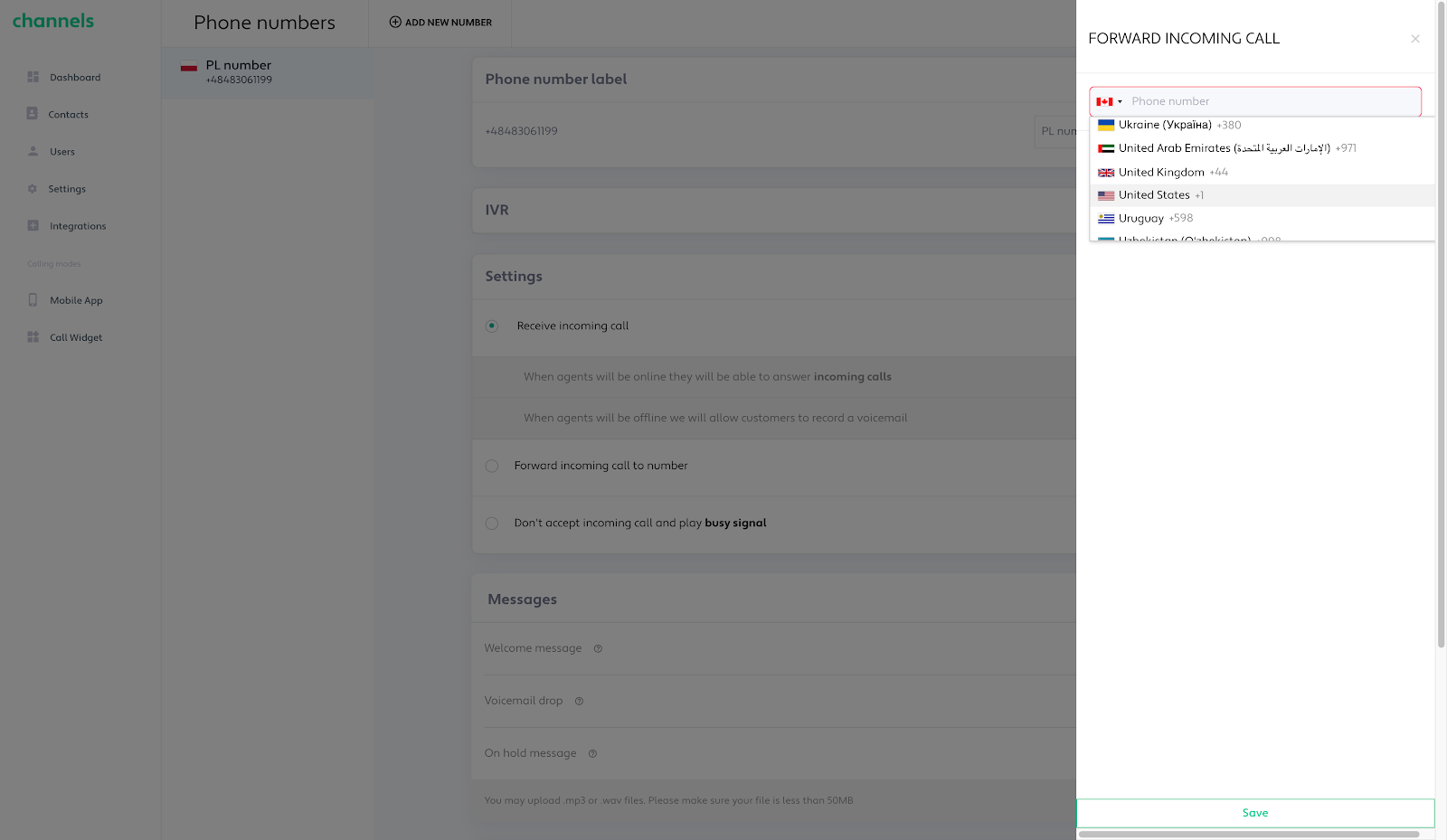
Turn this on to forward all calls to your Channels number to another phone number. After enabling it, enter the number you want calls sent to—you can change it anytime. Calls will still be recorded, and you can listen to them later.
This setting removes the option to answer calls in the app. After you select it, choose one of these five actions, which work the same as the When agents are offline options described above:
Play free line signal
Play busy signal
Disconnect the call
Play offline message
Allow customers to record a voicemail
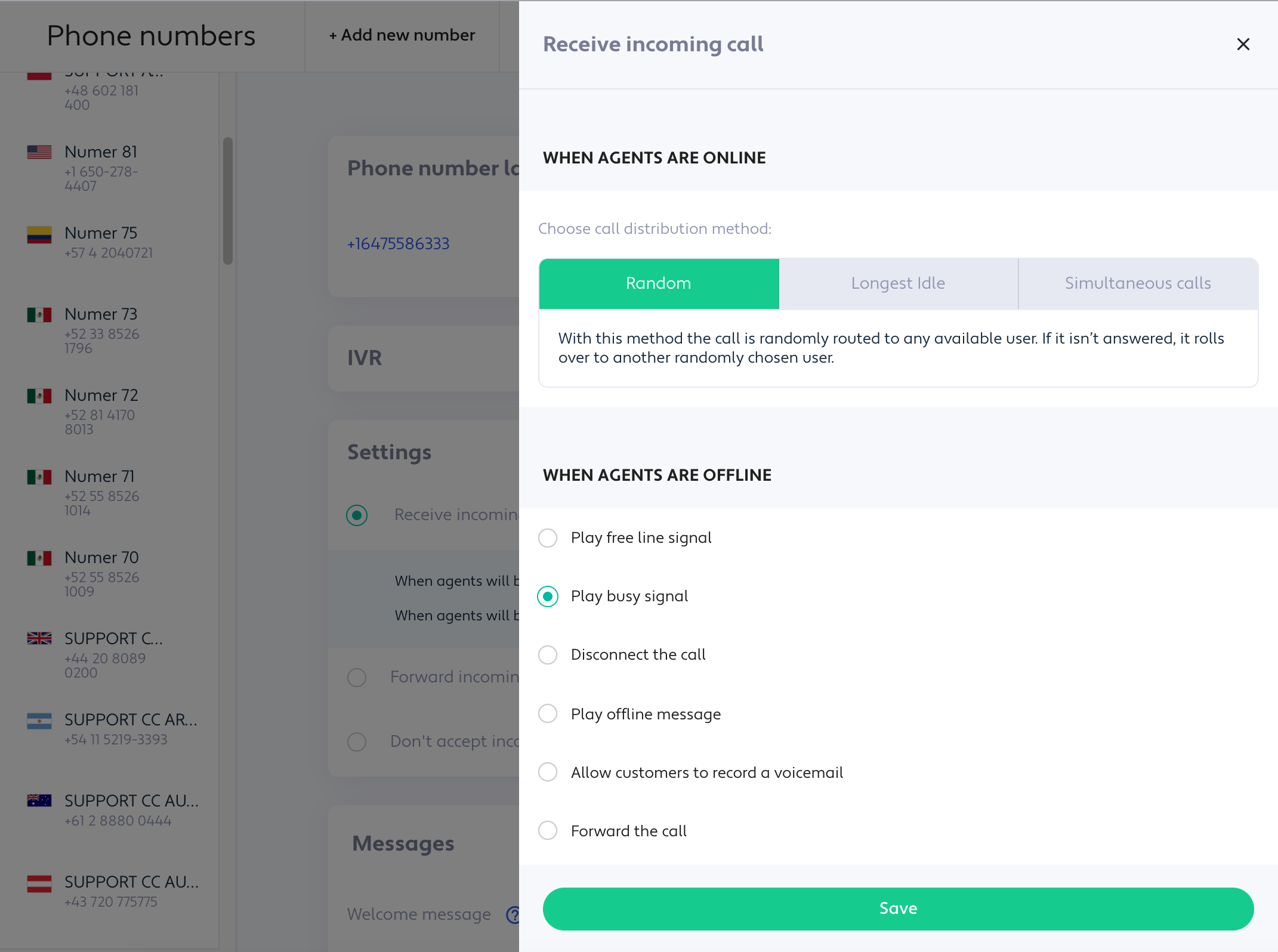
Always remember to save changes associated with the inbound calls!
Don't miss any chance to contact your customers.
In the Messages section, you can upload pre-recorded messages to make communication clearer and faster. Use them to welcome customers, handle voicemails or answering machines, and tell callers when they are on hold.
You can create three types of messages. Upload or drag a .mp3 or .wav file to use this feature. Files must be 50 MB or smaller.
Welcome Message - Callers hear your greeting before the call connects. The message plays once, then the call continues with a dial tone. This welcome message only plays for calls inside the application; it will not play when calls are forwarded to an external number.
If you want the welcome message to play before forwarding to another phone number, set up an IVR and configure call forwarding on it. Allow the caller to pick a specific option, or option 0 if the caller makes no choice.
You can find more about IVR settings here.
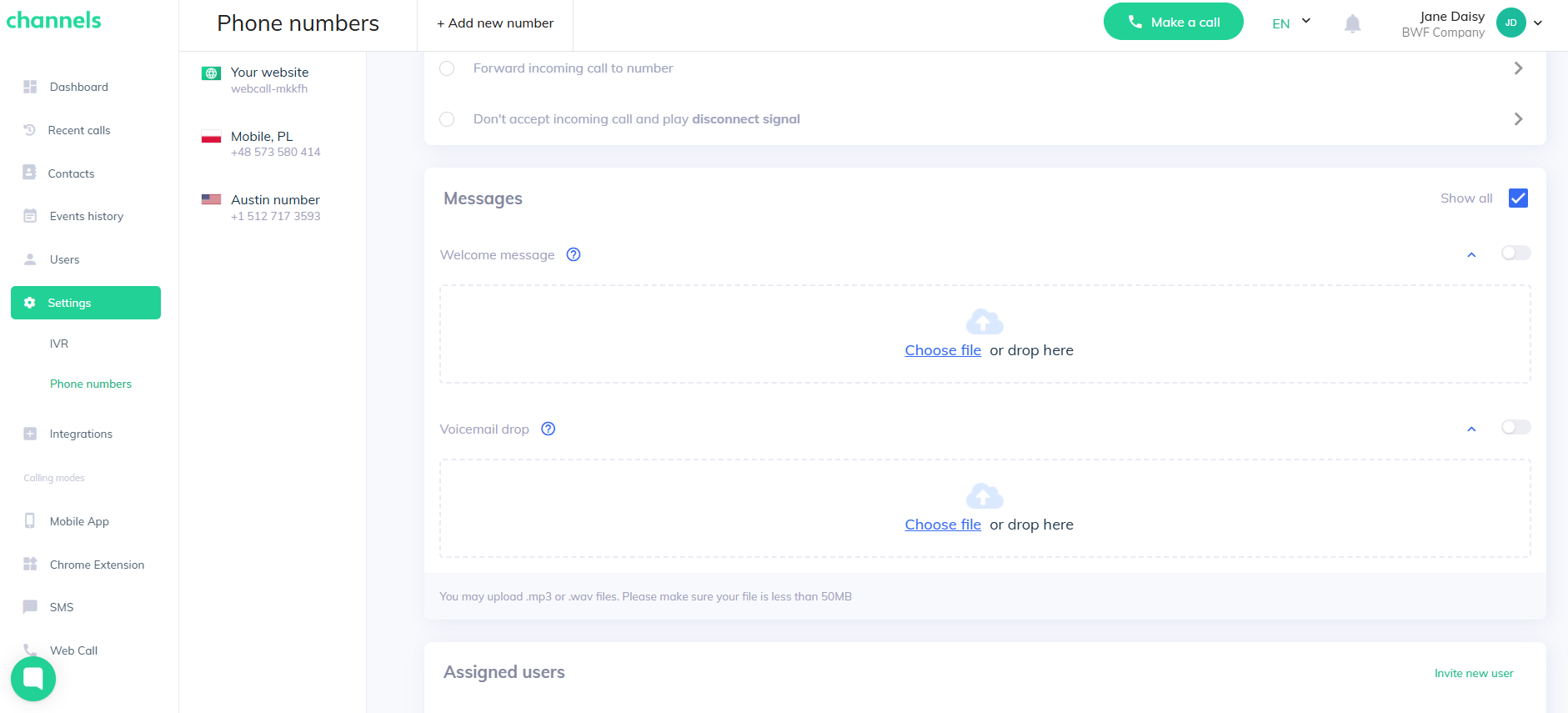
Voicemail Drop - Don't be surprised when a call reaches voicemail. Save time by leaving a pre-recorded message automatically. In the Channels Call Widget, click the Voice Drop icon right after the "beep" and Channels will leave your message.
Here you can pick which users can use a specific number and get calls to that number. By default, new users are given access to all numbers, and new numbers are given to all users.
Interactive voice response (IVR) lets you set up an automated system that responds to voice messages and keypad input. You can attach a previously configured IVR to your number, but note that this will override your Welcome Message settings.