
What is IVR?
Interactive Voice Response (IVR) is an automated phone system that responds to spoken words and keypad input. In Channels, you can build simple IVRs and link them to any of your phone numbers. Callers can choose options by pressing numbers on their phone—for example, “press 1 for sales, press 2 for support.”
Creating an IVR
To create a new IVR, go to Settings in the left panel and click IVR.
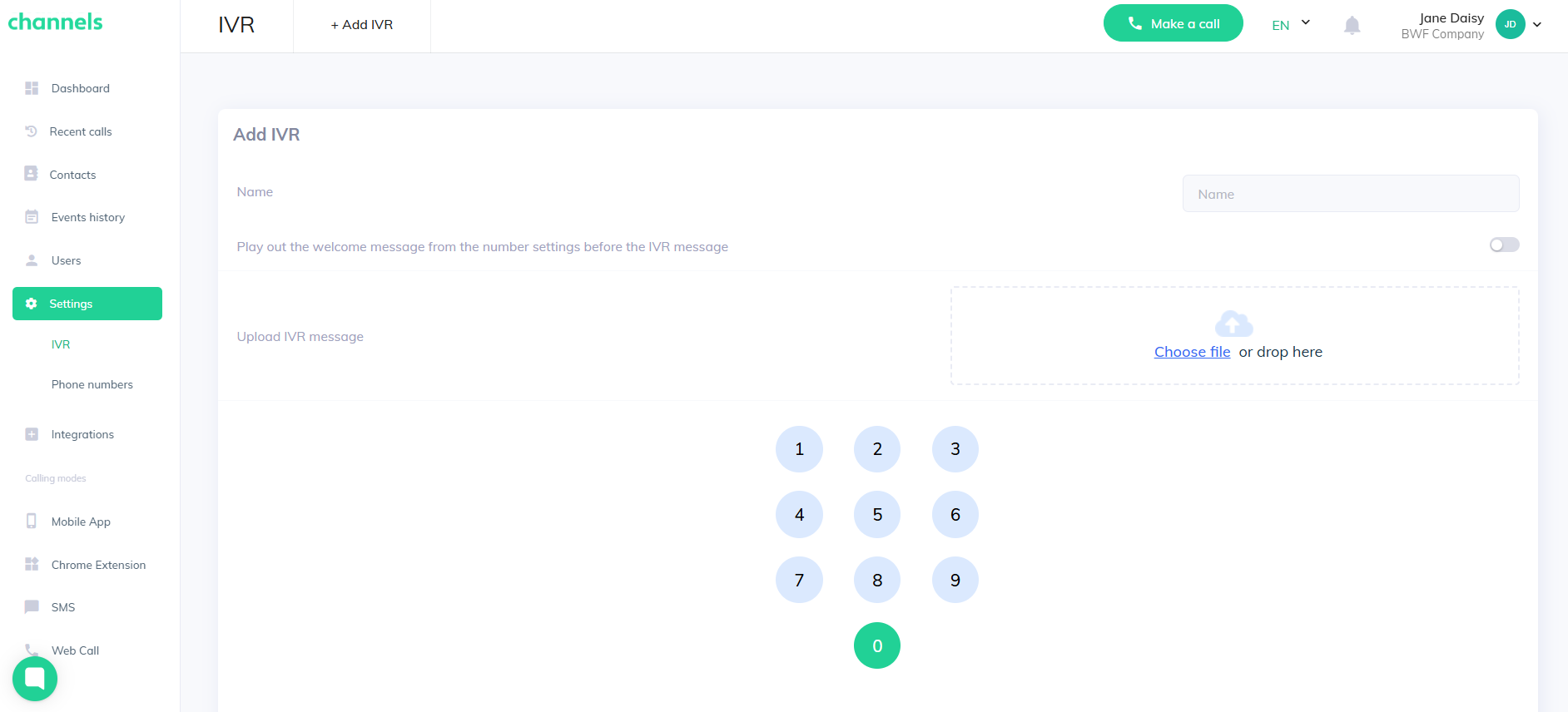
Enter the IVR name and upload a welcome message (MP3). The audio should state basic information about the number and list every available option with its corresponding key. After that, assign each keypad key to a specific action.
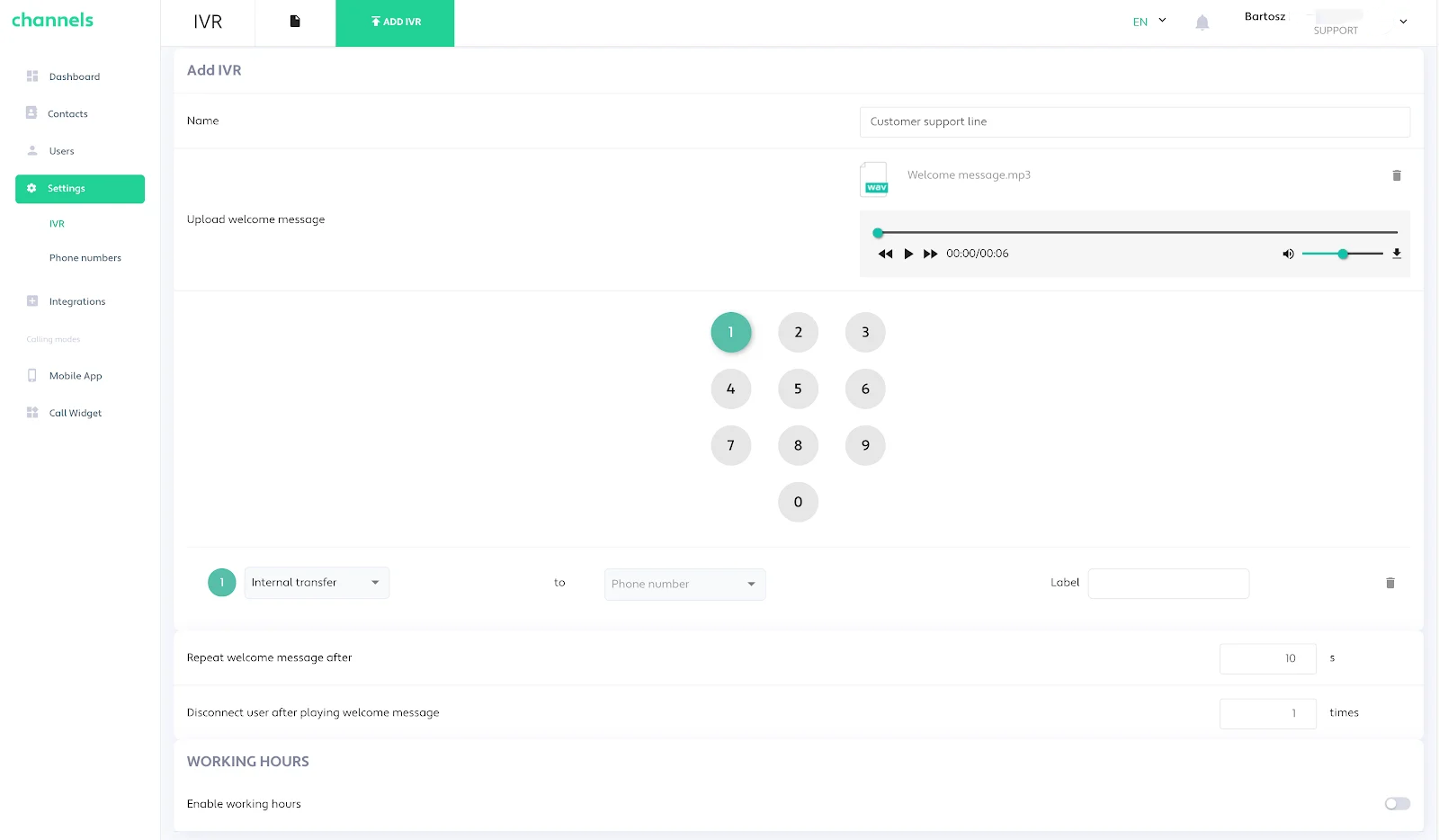
Select keys on the IVR keyboard diagram to enable the options you want. Selected keys will be highlighted and listed below the keyboard with their action options.
To make an IVR option work, choose one of these actions:
Forward call: Transfer the call to any phone number you enter. This works like a regular call transfer and may incur charges from your balance.
Internal transfer: Redirect the call to one of your Channels-provided numbers. Choose the destination from the dropdown. If that number has its own IVR, that IVR will not play.
Also add a label for each IVR option to describe the action and its purpose for reporting and monitoring.
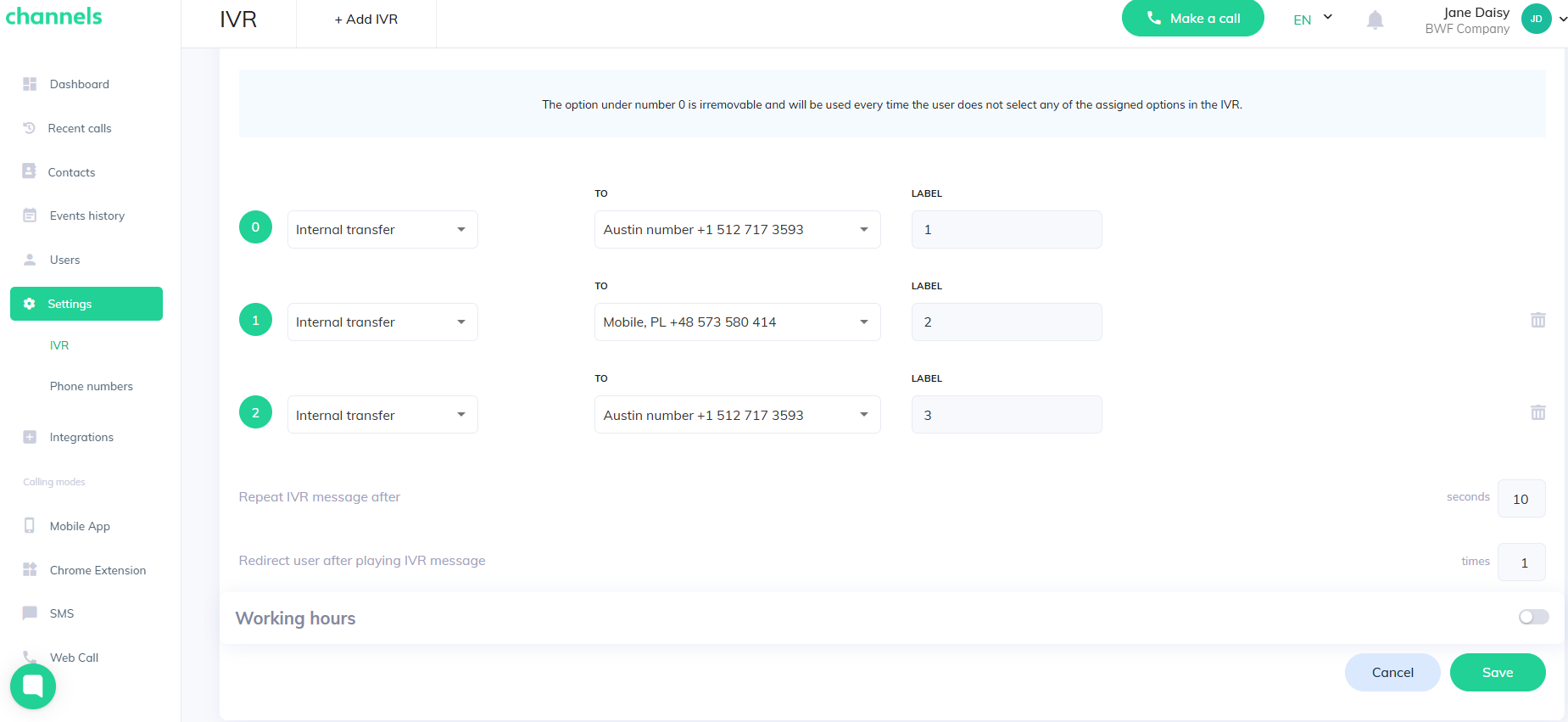
Below the options setup are the IVR overall settings. Here you can choose how many times callers will hear the audio message before the system disconnects, and set the pause between each repeat of the welcome message.
Working hours
If you want the IVR to run only at certain times, set its working hours. You can assign different hours for each day, and each day may include multiple time ranges. If this option is off, the IVR will be active all the time.
Welcome message
Note that the IVR message takes priority over a set welcome message. Only one message can play, and the IVR message will be chosen.